Is Every Business Need QR Code? Let's Find.
This guide is for local business owners, service providers, and marketers who want to increase their Google Reviews without awkward follow-up requests. If you run a restaurant, salon, dental office, or any business that relies on local customers, this article will show you how QR codes can automate and simplify your review collection.
Why Google Reviews Matter
Before we dive into the QR code solution, let's look at why Google Reviews are essential for your business:
- 93% of consumers read local reviews before making a purchase decision
- Star ratings influence click-through rates—businesses with 5 stars see significantly higher engagement
- Google My Business listings with more reviews rank higher in local search results
- Social proof from reviews builds trust with potential customers
The challenge? Most satisfied customers never leave a review. They're busy, forget, or don't want to hunt for the review link. A QR code solves this by making the process instant.
What Is a QR Code for Google Reviews?
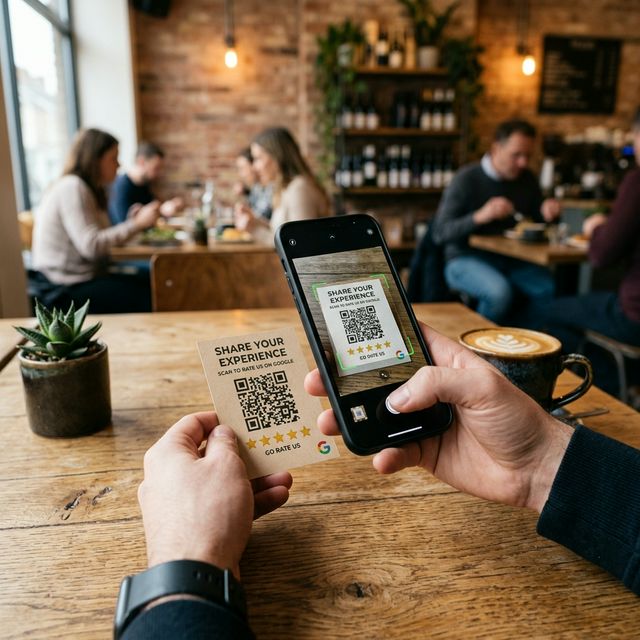
A QR code for Google Reviews is a scannable code that takes customers directly to your Google review form. Instead of searching for your business, customers simply scan the QR code with their phone camera and land instantly on the page where they can leave feedback.
Key benefits:
- Customers can leave a review in under 60 seconds
- No app download required—just use the phone's camera
- Works universally on iPhone and Android
- Trackable if you use a QR code generator with analytics
How to Create a QR Code for Google Reviews
Creating your review QR code is straightforward. Here's how to generate one using MakeMyQRCode:
Step 1: Find Your Google Review Link
Before generating the QR code, you need your direct review link. Here's how to get it:
- Go to Google Maps and search for your business
- Click on your business listing
- Look for the "Write a review" button
- Copy the URL from your browser address bar
Alternatively, use the Google Business Profile manager to find your unique review link. You can also use this format:
https://search.google.com/local/writereview?placeid=[YOUR_PLACE_ID]
Step 2: Generate Your QR Code
1. Visit makemyqrcode.com
2. Select "URL QR Code" option
3. Paste your Google Review link
4. Customize the design (colors, logo, style)
5. Download in your preferred format (PNG, SVG, PDF)
Pro Tip: Add your business logo to the QR code center. This increases brand recognition and trust when customers scan.
Step 3: Test Before Printing
Always test your QR code before distributing it:
- Scan it with multiple phones (iPhone and Android)
- Verify it opens the correct review page
- Check that the page loads within 3 seconds
Where to Display Your Google Reviews QR Code
The placement of your QR code significantly impacts how many reviews you receive. Here are the high-conversion locations:
1. Point of Sale / Checkout Counter
Place the QR code at your register where customers wait. They're already in "spending mode" and likely satisfied with their experience.
- Use a stand or frame to keep it visible
- Add a small sign saying "Scan to leave us a review"
- Include a discount or small incentive nearby
2. Receipts
Add the QR code to printed receipts. Customers take them home and may leave a review later.
3. Table Tents (Restaurants/Cafes)
For restaurants, table tents work exceptionally well. Customers scan while waiting for food or after their meal.
4. Business Cards
Include the QR code on your business card. Each card becomes a review request in potential customers' hands. Learn more about how QR codes help businesses grow faster in our detailed guide.
5. Email Signatures
Add the QR code to your email signature. Every email becomes a subtle review request.
6. Packaging (E-commerce/Retail)
If you ship products, include a QR code on packaging or in packing slips.
Conclusion
A QR code for Google Reviews is one of the simplest, most effective tools for local business growth. It removes friction from the review process, meets customers where they already are (on their phones), and turns satisfied buyers into your marketing team.
Start small: create one QR code, place it at your checkout, and track the results. Within weeks, you'll see more reviews flowing in—and those 5-star ratings will help you attract even more customers. If you're looking for a professional QR code generator, MakeMyQRCode is here to help you grow.
Get More Reviews Fast
Create your Google Reviews QR code today and watch your ratings grow.
Generate QR Code